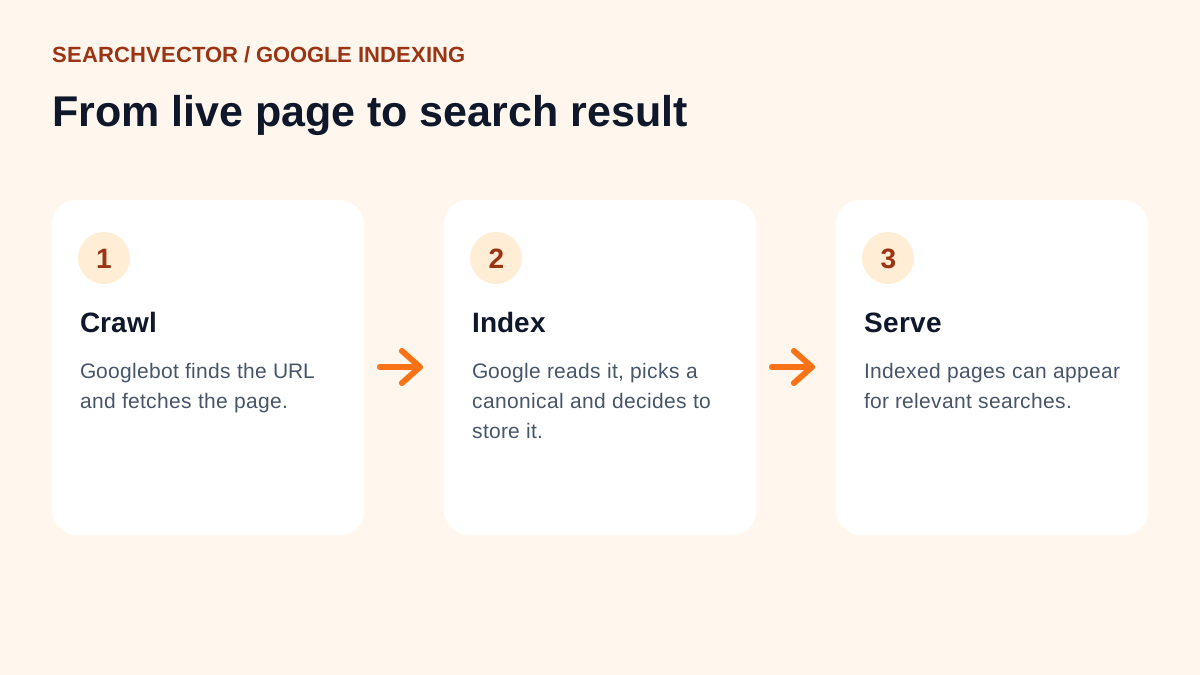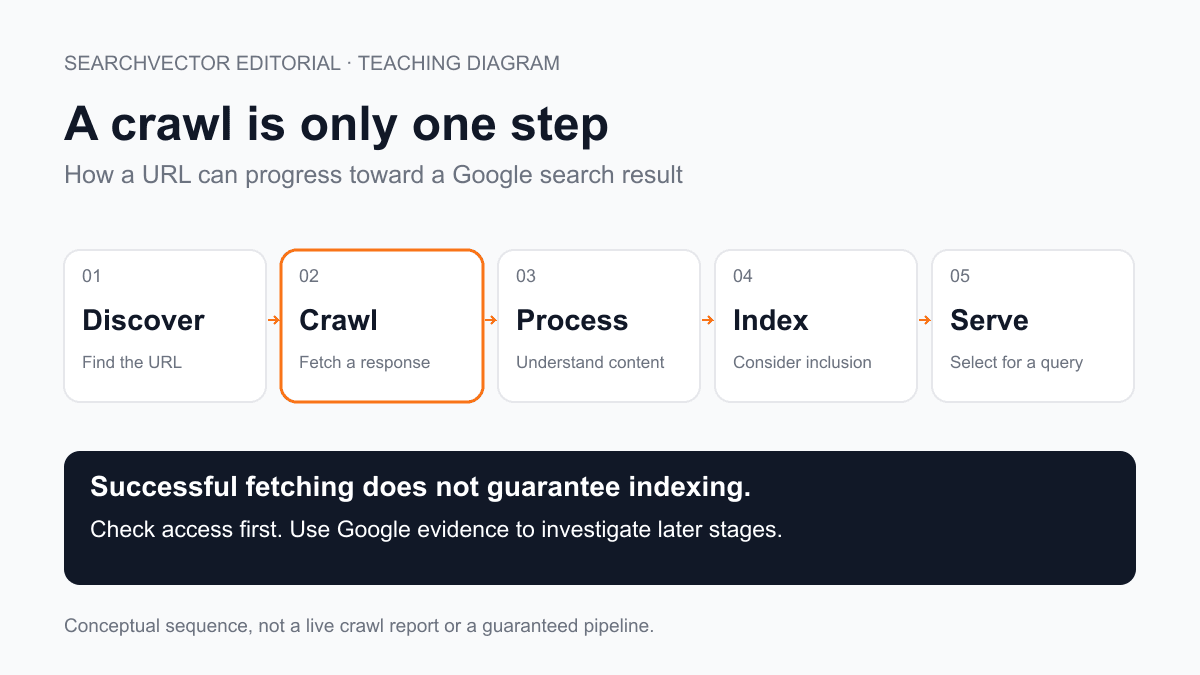

A favicon is the small image that identifies a website in browser tabs and bookmarks. The name comes from “favorite icon.” It gives readers a visual way to find a site among open pages, even when a tab is too narrow to show its title. Search engines can also display a site's favicon beside a result. MDN's favicon definition describes these common browser uses.
SearchVector's orange segmented circle is one example. The cover diagram uses its actual icon asset to explain the connection between an image file, a page's HTML and the browser. It is a teaching diagram, not a screenshot of a search result.
Ready to implement one? Jump to the HTML setup or missing-icon troubleshooting.
Favicon, logo and social image: which is which?
A logo is the broader visual identity of a business. It might include a symbol, a full name and a tagline. A favicon is a small application of that identity, usually a simplified symbol that remains recognizable at tiny sizes. Shrinking an entire wordmark often makes its letters indistinguishable.
| Asset | Main job |
|---|---|
| Favicon | Identify the page in a browser tab or bookmark |
| Header logo | Identify the brand within the page layout |
| Social preview image | Illustrate a shared link with a larger image |
| Home-screen icon | Represent a saved website or installed web app on a device |
Changing the header logo does not necessarily update the favicon. These may be separate files controlled by different settings. Likewise, replacing a social preview image does not repair a missing tab icon. Start by identifying the surface that is wrong, then find the setting that supplies it.
Choose an icon that survives small sizes
Start with a square canvas and a simple silhouette. Export a large source image, then preview it at 16×16 and 32×32 as a practical design check. Those previews test legibility; they are not a claim that every browser renders the icon at one fixed size. Look for disappearing strokes, crowded lettering and transparent areas that merge with the tab background.
Review the mark against both light and dark backgrounds. A thin dark outline can vanish on a dark tab, while a pale symbol can disappear on a light one. A solid shape with deliberate contrast is often easier to recognize. Do not rely on color alone: a distinctive outline still helps when icons are visually similar.
Keep a source file that your team can edit. Exporting a larger copy of a blurry thumbnail does not restore its detail. For a rebrand, approve the small icon alongside the main logo so the website, bookmarks and saved shortcuts feel related.
Add a favicon with a real HTML example
SearchVector serves a real 512×512 PNG at its favicon image URL. This minimal declaration points to that existing asset on the SearchVector site:
<link rel="icon"
      href="/favicon.png"
      type="image/png"
      sizes="512x512">
Put the declaration inside the document's <head>. The root-relative path resolves from the current hostname: on SearchVector it requests /favicon.png from SearchVector; on your domain it requests that file from your domain. For your own site, upload your own brand asset and use its actual path. Copying the tag without uploading the image leaves a broken reference.
The rel attribute identifies the resource as an icon. The href locates it, type describes its format, and sizes describes the image dimensions. Writing “512x512” does not resize a file. Inspect the exported image and keep the declaration accurate.
SearchVector also declares SVG and ICO alternatives. Browsers can select between icon declarations using attributes such as type and size, as explained in MDN's icon link reference. Multiple declarations are therefore not automatically a problem, but outdated alternatives can explain inconsistent appearances.
If you use a CMS, start with its site-icon setting. If you use a framework, use its established metadata mechanism. Then inspect the resulting HTML: a successful upload in an admin screen is only one part of the job. Avoid adding a second competing setting before checking what the existing template already outputs.
What Google needs for search appearance
Google's favicon documentation requires a square image of at least 8×8 pixels and recommends larger than 48×48. Its listed formats include PNG and ICO. Do not assume that an SVG working in a browser establishes support in Google's search presentation.
The homepage must declare the icon. Googlebot needs access to that homepage, and Googlebot-Image needs access to the icon file. Keep the icon URL stable and use a mark representative of the site. Google supports one favicon per hostname: a subdomain can have its own, but a subdirectory does not get a separate search favicon.
Eligibility does not guarantee display. After a change, Google needs to recrawl and process the homepage; its documentation says this can take days to weeks. Site owners can request homepage indexing through URL Inspection. Repeatedly renaming the image is not a useful substitute for checking access and allowing processing time.
Troubleshoot a missing or outdated favicon
Separate three observations: what the HTML declares, what the image URL returns, and what the browser displays. A mismatch between them tells you where to investigate. Keep a short record of the page URL, icon URL and result rather than changing several settings at once.
| Symptom | Next check |
|---|---|
| No icon on any page | Inspect the head for an icon declaration; open its image URL directly |
| Homepage works, article does not | Compare templates and root-relative versus page-relative paths |
| Old icon in one browser | Compare a fresh browser profile and inspect all declared alternatives |
| Image URL opens a webpage | Check for a redirect, access challenge or fallback HTML response |
| Browser works, search does not | Review the homepage declaration, crawl access and search eligibility separately |
A response labeled 200 is insufficient if the server sends a login page or a generic HTML fallback. In the browser's Network panel, inspect the icon request's final URL, response content type and preview. A PNG should actually decode as a PNG. Also check whether a CDN is still serving an older file after the origin was updated.
For a cache investigation, open the image directly and compare it with a fresh browser profile. Clearing a cache can help isolate the cause, but users should not need to perform a special reset for the website to function. Check the deployed asset and cache configuration before treating a local refresh as the permanent fix.
Worked example: a nested page loses its icon
Consider a fictional site whose homepage shows the right icon, while an article under /blog/ does not. Both templates contain href="favicon.png", without the leading slash. Assuming there is no base URL override, that relative path resolves beside the current page. It may work at the root while requesting a different location for the article.
The developer opens the article's icon request and finds that it returns the site's HTML fallback instead of an image. The fix is to confirm the image exists at the site root and change the shared declaration to href="/favicon.png". They then check the homepage and article again. Both now request the same asset.
This is a worked diagnostic example, not a reported SearchVector incident. Its lesson is to inspect the requested URL before replacing the artwork. A perfectly valid image cannot help if a nested template asks for the wrong file.
A final check before you close the task
- Open the homepage and one nested page; confirm both declare the intended icon.
- Open each declared alternative and check that it belongs to the current brand.
- Confirm the intended image loads without authentication or an HTML fallback.
- Inspect the small icon in light and dark browser appearances.
- Review Google eligibility separately, then record the change and allow processing time.
For a broader website review, continue with SearchVector's Website Checker or its Web Page Crawler. Keep the direct image and HTML checks above as your favicon evidence; a general page review does not guarantee how a search engine will display your brand.
A finished favicon task has a recognizable image, a correct declaration and a working resource URL across page templates. Verify those concrete pieces first. Then monitor search appearance without confusing a delayed refresh with a broken browser implementation.